Login and Guest Access
Use this guide to sign in to Forever2U or continue as a guest.
Step 1: First Time FBO Login
Tap First Time FBO Login if you are activating Forever2U for the first time.
The app will:
- Match your member details.
- Validate your email format and email domain.
- Send an OTP to your email if the domain can receive email.
- Ask you to enter the OTP.
- Let you create your Forever2U password.
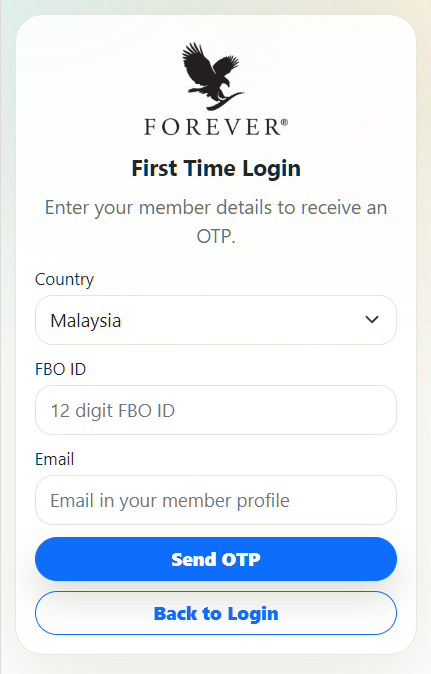
Note: OTP emails are sent in English, Malay, and Simplified Chinese in the same email.
Step 2: Open Member Login
On the login screen, enter your FBO ID / RC ID and password.
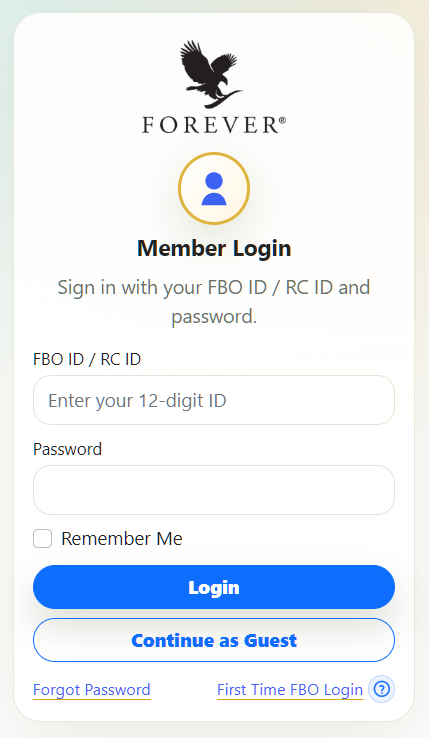
Note: The login screen accepts your FBO ID / RC ID. Use the ID and password created for Forever2U.
Step 3: Sign in
Tap Login to open your Forever2U dashboard.
If the login is successful, Forever2U loads your member session, country, language, account type, and profile information.

Step 4: Continue as Guest
Tap Continue as Guest if you want to enter the app without member login.
Guest access uses:
- FBO ID: G00000000001
- Name: GUEST
- Rank: Retail
- Account Type: GUEST

Note: Guest access is limited and menu access may be controlled later.
Step 5: Forgot Password
Tap Forgot Password if you need to reset your password.
The app will send an OTP to your registered email. Enter the OTP, then create your new password.
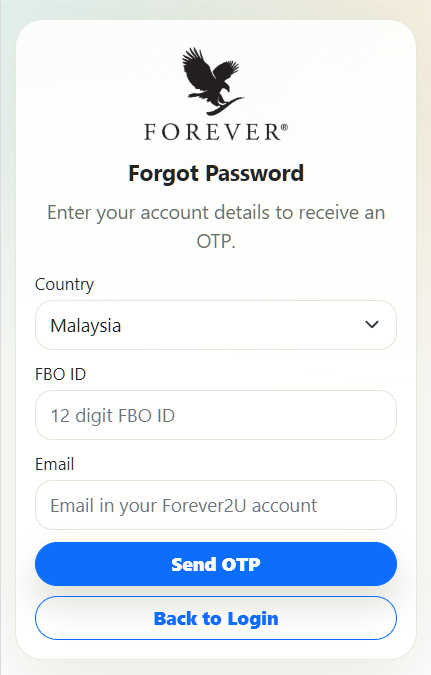
Note: You can use Start Over if you do not receive the OTP or entered the wrong account details.